
REST API on Postman
The EMS xAPI Postman collections supports various authentication schemes, including Bearer Tokens, making it easier to test secured endpoints and manage session-level credentials like UserToken.
Follow the steps below to start using the EMS REST API on Postman:
-
Visit the SSNC-Eze-EMS-xAPI path. The pre-configured Postman setup for EMS xAPI (REST) is launched.
-
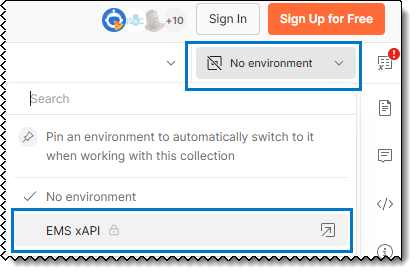
Select the EMS xAPI environment from the top-right dropdown list, shown below.
-
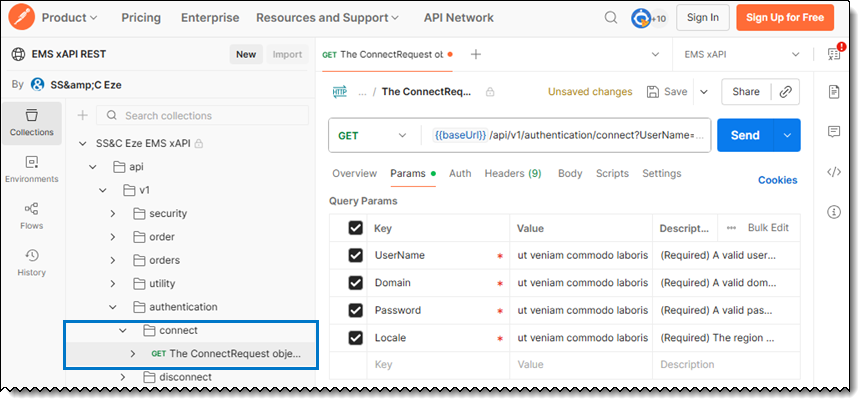
Navigate to the Authentication API using the left index, authentication > connect API > GET.
-
Click Params tab.
-
Enter your UserName, Domain, Password, and Locale details. Contact your SS&C Eze client service representative if you need any assistance.
Note: Your account will be temporarily locked for 3 minutes if you attempt to log in three (3) times within 60 seconds, regardless of whether the attempts are successful or unsuccessful.
-
-
Click Send. The status is displayed in the Responses pane.
If your login is successful, a UserToken is generated. You will need this token for subsequent API calls.
-
Bearer Token: You can also set the user token for your session by including it as a bearer token. Follow these steps:
-
Select an API (e.g., connect).
-
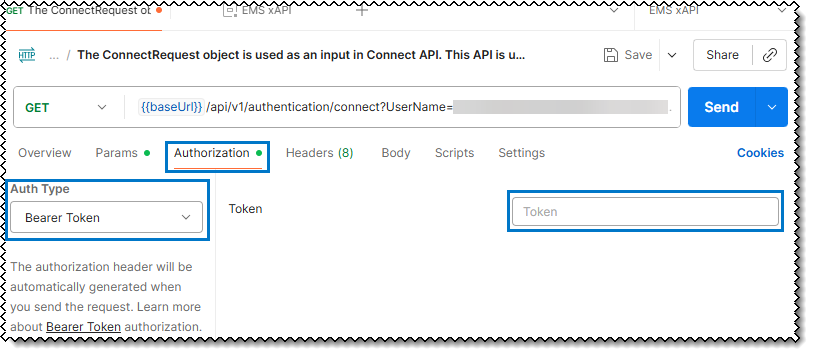
Click the Authorization tab.
-
From the Auth Type dropdown list, select Bearer Token.
-
In the Token field, enter the generated user token, as shown below.
Once set, you do not need to enter the user token for each API call.
-
Note: Swagger does not support the Subscribe APIs (e.g., SubscribeOrderInfoRequest).
Managed Cloud Platform (MCP)
You can use Postman with the Managed Cloud Platform (MCP) to generate a MCP server based on your selected API(s).
To generate a MCP server:
-
Navigate to the online MCP Generator: https://www.postman.com/explore/mcp-generator.
-
Click the Search for APIs (required) field at the center of the screen. The search window appears.
Note: You need to be logged in to use the search feature.
-
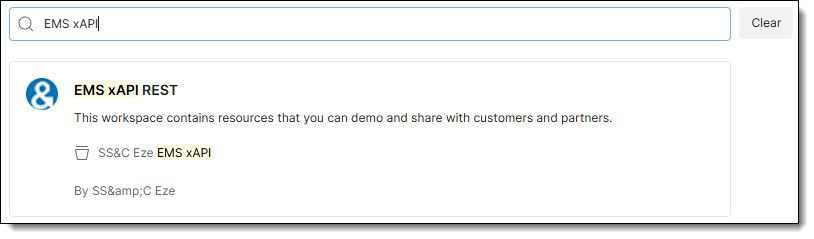
Enter EMS xAPI REST and select SS&C Eze EMS xAPI environment from the search results, shown below.
-
In the left index, select the desired APIs. Use the right pane to enable the checkboxes for those APIs.
-
Click Add Requests to add the selected APIs to the generator list.
-
Click Generate to create the downloadable MCP ZIP file.
-
Download the generated ZIP file.
-
Unzip the file.
-
Open the README.md file in the unzipped folder.
-
Follow the instructions in the README.md for the next steps.
-